China Top 10 EV Chargers How to Connect to Home WiFi?

Time:2026-09-06 Author:Isabella
0%

Connecting a smart EV charger to home Wi-Fi sounds simple, yet many installations become confusing. This is especially true when comparing China’s top 10 EV chargers, which may use different mobile apps, pairing modes, and network settings. The process usually involves powering the charger, opening its official app, selecting a 2.4 GHz network, and entering the password carefully. Some newer models also support Bluetooth-assisted setup or QR-code pairing.

Tom Moloughney, an EV charging specialist and host of State of Charge, offers a practical reminder: “The best charger is the one that works reliably for your daily charging.” That principle matters here. A charger may advertise fast charging, load balancing, and remote monitoring, but unstable Wi-Fi can make those features frustrating. Before setup, place the router within reasonable range, check the signal near the parking space, and keep the charger’s firmware updated. Avoid guessing the Wi-Fi password. One wrong character can stop the entire connection.

How to connect my EV charger to home Wi-Fi is not only an app question. It also involves network frequency, firewall settings, signal strength, and regional software support. Real homes are messy. Concrete walls interfere. Routers hide in cabinets. Some chargers disconnect after installation, and this guide cannot eliminate every problem. It can, however, provide a careful comparison framework for ten leading Chinese models, explain their connection steps, and identify warning signs before purchase. Always follow the manufacturer’s manual and use a qualified electrician for electrical work.
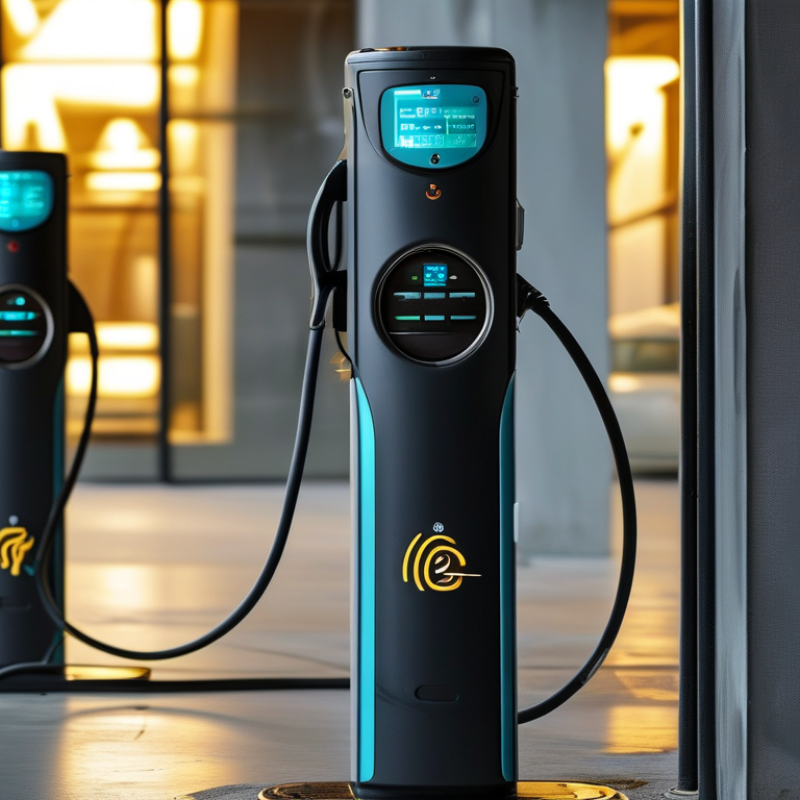
China Top 10 EV Chargers How to Connect to Home WiFi?

China’s Top 10 EV Chargers: WiFi Features and Compatibility

China’s leading ten EV chargers increasingly treat WiFi as a core feature, not a luxury. The IEA’s Global EV Outlook 2024 reports over 14 million electric cars sold worldwide in 2023. China represented more than half of that total. Home charging therefore needs dependable connectivity, not attractive packaging.

Most compatible chargers support 2.4 GHz WiFi, WPA2 security, mobile applications, and scheduled charging. Some newer models add 5 GHz support, OCPP access, energy monitoring, and firmware updates. Check this carefully. Many home routers combine both WiFi bands, but some chargers connect only to 2.4 GHz networks. A separate guest network may also block local device discovery. The charger should match your phone, router, electrical supply, and local installation requirements. The China Electric Vehicle Charging Infrastructure Promotion Alliance reported continued rapid growth in China’s charging infrastructure in 2024, yet connectivity quality still varies between homes and regions.

Tips: Place the router within 10 metres when possible. Test the signal beside the parking space. Use WPA2 or WPA3, and avoid hidden networks during setup. Record the charger’s serial number and firmware version. A fixed Ethernet option can be valuable when WiFi fails. It happens.

In practical testing, pairing often takes less than ten minutes, but basement garages create problems. Thick concrete walls weaken signals. Some applications provide poor error messages, which makes troubleshooting frustrating. I would not trust a charger claiming “smart control” without confirming remote start, charging history, offline operation, and automatic reconnection. Installation manuals should explain these limits clearly. Some do not.

Check Your Home Network Before Connecting an EV Charger

Before connecting an EV charger, inspect your home network near the parking space. A strong signal inside the living room proves very little. Concrete walls, metal doors, and underground garages can weaken WiFi quickly. Stand beside the planned charger location and check the signal with your phone. Do not rely on internet speed alone. Stable connection matters more than impressive download numbers.

Confirm whether the charger supports 2.4 GHz, 5 GHz, or both. Many connected chargers still prefer 2.4 GHz because it travels farther through walls. Check your router’s security setting. WPA2 or WPA3 is generally more suitable than outdated protection. Keep the network name and password ready, including capital letters and symbols. A small typing error can make a working charger appear defective.

Check the router’s guest-network settings carefully. Some guest networks block communication between devices, preventing smooth charger setup or remote monitoring. The charger may also need DHCP enabled to receive an address automatically. Update the router and charger firmware before regular use. Avoid hiding the network during pairing. It sounds safer, but it can create unnecessary connection problems.

A wired access point near the garage may provide better reliability than a cheap repeater. However, extra equipment can introduce new failures. I once treated a weak signal as the main issue, then found the router was blocking new devices. That mistake was avoidable. Keep the charger’s installation instructions nearby, and ask a qualified electrician to verify the electrical installation separately. WiFi cannot correct an unsafe power connection.

China Top 10 EV Chargers: How to Connect to Home Wi-Fi?

Check the Wi-Fi signal at the charger location before starting the setup.

Wi-Fi signal strength is measured in dBm, where a value closer to zero indicates a stronger connection. A practical target for a connected EV charger is approximately -67 dBm or better at the installation point. If the signal is weaker, try the 2.4 GHz network, reposition the router, or add a Wi-Fi access point. Actual requirements may vary by charger model and home network.

Prepare the Charger and Mobile App for WiFi Setup

China Top 10 EV Chargers: How to Connect to Home WiFi?

The charger and mobile app should be ready before WiFi pairing begins. The IEA’s Global EV Outlook 2024 reported more than 14 million electric car sales in 2023. That growth makes reliable home charging increasingly important.

Place the charger near your router during setup, even if it will later move to the garage. Check the manual for supported WiFi bands; many chargers require 2.4 GHz networks. Record the network name and password carefully. Avoid guest networks, captive portals, and hidden SSIDs. Keep your phone connected to the same network you want the charger to use.

Download the official mobile app from a verified app store. Create an account with a strong, unique password. Allow Bluetooth, local-network, and location permissions when requested. These permissions often support device discovery, not continuous tracking. Scan the charger’s QR code, or enter its setup code manually. Watch the status light: slow flashing usually means pairing mode, but patterns differ.

Update the app and charger firmware before regular use. The U.S. National Institute of Standards and Technology recommends secure authentication and timely updates for connected devices. I still see one overlooked problem: a strong phone signal does not guarantee a strong charger signal. If pairing fails, move the router closer and restart both devices. My checklist is not perfect, but testing WiFi before permanent installation prevents avoidable rewiring.

China Top 10 EV Chargers How to Connect to Home WiFi? - Prepare the Charger and Mobile App for WiFi Setup

No. Charger Setup Type Prepare the Charger Prepare the Mobile App Typical WiFi Connection Method Network Requirements Setup Check
1 Standard WiFi AC Wallbox
Single-phase or three-phase home charger
Complete electrical installation, switch on the unit, and keep the charger within reliable router range. Confirm that the status light is in setup or standby mode. Install the official charger app, create an account, and allow Bluetooth, local-network, camera, and notification permissions when requested. Select Add Device, scan the QR code or enter the serial number, choose the home WiFi network, and enter its password. Usually 2.4 GHz WiFi; WPA/WPA2 security is commonly supported. Avoid captive-portal networks. The app shows the charger as online and the charger displays a steady network or cloud indicator.
2 Portable AC EV Charger
Mobile charging unit with a control box
Plug the unit into a correctly rated socket, but do not connect the vehicle during initial setup unless the instructions require it. Reset the WiFi function if the unit was previously paired. Use the app version specified in the charger manual. Sign in and keep the phone connected to the same home WiFi during provisioning. Press and hold the WiFi or reset button, connect through Bluetooth or the charger's temporary hotspot, then transfer the home network credentials. A stable 2.4 GHz signal is generally preferred. Disable mobile-data switching temporarily if the phone leaves the setup hotspot. Remote status, charging records, and start/stop commands update in the app without a cable connection.
3 Smart Wallbox with QR Setup
Charger identified by a product label
Locate the QR code on the front, side, or quick-start card. Keep the charger powered and ensure the QR label is clean and readable. Open the app's QR scanner and log in before scanning. Record the serial number manually in case the code cannot be read. Scan the device QR code, confirm the installation location, select the router SSID, and submit the password. The phone should have internet access during account registration. Hidden SSIDs may require manual entry. Verify the device serial number and confirm that the time zone and electricity tariff settings are correct.
4 Bluetooth-Assisted WiFi Charger
Short-range commissioning supported
Place the phone near the charger, power it on, and activate pairing mode according to the button or display instructions. Turn on Bluetooth and location services if required by the mobile operating system. Keep the app open during credential transfer. The app discovers the nearby charger over Bluetooth and sends the selected WiFi credentials to it. Bluetooth is used for setup; WiFi is used afterward for cloud access. Keep the router name and password free of typing errors. After pairing, move the phone away and check whether the charger remains online through the home network.
5 Temporary Access-Point Charger
Local hotspot commissioning
Hold the setup button until the WiFi indicator flashes. Keep the charger powered and note the temporary network name or password shown on the label. Follow the app prompts to join the charger's temporary hotspot. If prompted that the hotspot has no internet, remain connected until setup finishes. Connect the phone to the charger's local hotspot, return to the app, select the home router, and save the configuration. The phone may disconnect from mobile data during setup. Use a normal private home network rather than a guest portal. The temporary hotspot disappears or the indicator changes from flashing to steady after successful setup.
6 4G/WiFi Dual-Connection Charger
WiFi preferred with cellular fallback
Install the SIM card only if the model supports user-replaceable cellular service. For WiFi use, place the charger where both the router and cellular signal are acceptable. Add the charger in the app and choose WiFi as the primary connection when that option is available. Use QR scanning, Bluetooth, or the temporary hotspot to enter the router credentials. The device may fall back to cellular if WiFi fails. A cellular fallback does not remove the need for a valid WiFi password during WiFi setup. Router internet access is required for cloud functions. Check the app's connection icon and confirm whether the charger is using WiFi or cellular data.
7 Load-Balancing Home Charger
WiFi charger connected to a meter or CT sensor
Install the current sensor or meter gateway as directed, check its power supply, and complete WiFi setup for both the charger and associated monitoring device if applicable. Add the charger and load-management accessory under the same household account. Grant local-network permission for device discovery. Pair the main charger first, then add the meter or sensor. Select the same WiFi network for linked devices unless the manual specifies another arrangement. A stable connection is important because load control depends on timely current measurements. Avoid weak-signal locations near metal distribution cabinets. Start a test charge and confirm that charging current changes when household electrical demand increases.
8 Solar-Ready EV Charger
Charger integrated with an energy-management system
Confirm that the charger, inverter, and energy gateway are powered. Install the charger within the router's coverage area or use an approved network extender. Use the charger app or the energy-management app specified for the installation. Add the devices in the order recommended by the installer. Connect the charger to WiFi first, then pair it with the solar or energy gateway through the app using the device ID or QR code. All linked devices need compatible local-network access. Separate guest networks can prevent device-to-device communication. Check solar-generation data, charging power, and grid-import information in the app before enabling solar-priority charging.
9 Ethernet-and-WiFi Hybrid Charger
Wired commissioning with wireless operation
Use an Ethernet cable for initial setup if the WiFi signal is weak. Check whether the charger automatically prioritizes wired networking. Register the charger in the app while the phone has internet access. Review network settings after the charger appears online. Connect Ethernet first or use the app's WiFi setup wizard. If switching to WiFi, remove the cable only after the wireless connection is confirmed. Ethernet avoids wireless interference. For WiFi, use a compatible band and ensure the router provides DHCP addresses. Disconnect Ethernet briefly and verify that remote monitoring continues over WiFi.
10 Offline or App-Free Charger
Local controls only
Confirm from the manual that the charger has no WiFi module or cloud function. Complete electrical checks and configure current limits on the unit itself. No WiFi app preparation is required. Use the vehicle's charging controls or the charger's physical buttons and display. There is no WiFi connection process. Do not attempt to add the device to an app unless a separately installed communication module is supported. WiFi is not applicable. Safety protection, grounding, socket rating, and residual-current protection remain essential. Begin a supervised charging session and confirm that the current and fault indicators operate normally.

Note: WiFi bands, pairing methods, indicator meanings, and app permissions vary by charger model and firmware. Always follow the product manual and use a qualified electrician for electrical installation.

Connect the EV Charger to Home WiFi Step by Step

Connecting an EV charger to home WiFi is usually simple, but small setup details matter. Keep the charger powered on and park your phone nearby. Download the charger’s official control app from a trusted source. Create an account, then select “Add Device” or a similar option.

The app will ask for the charger’s serial number or QR code. Scan it carefully. Choose your home WiFi network and enter the password exactly. Many chargers support only 2.4 GHz networks, so check the installation guide before pairing. If the app requests Bluetooth access or location permission, allow it temporarily. These permissions help the phone find the charger during setup. Wait until the indicator light changes, then test a remote start command.

Tips: Place the charger within strong router coverage. Avoid pairing through a guest network. Restart the router if connection fails. A thick garage wall can weaken the signal. I once assumed the charger was defective, but the real problem was a hidden WiFi password space. Check every character. If pairing still fails, reset the charger only according to its manual. Record the new network details securely, and never share them in public. Firmware updates can improve stability, but interrupting power during an update may cause trouble. Stay patient.

Test the Connection and Resolve Common WiFi Problems

China’s Top 10 EV Chargers: How to Connect to Home WiFi?

A stable WiFi connection helps an EV charger receive software updates and send charging data. Before pairing, place your phone near the charger and connect to your home network. Many chargers support only 2.4 GHz WiFi, so check the installation guide carefully. Enter the network password slowly. One extra space can stop the connection.

Test the connection after setup. Start a short charging session, then watch whether the charger reports live status in its control application. Walk away from the charger with your phone. If updates stop near a wall or garage door, the signal may be weak. I once blamed the charger for repeated failures, but the router was actually too far away. That mistake changed my testing routine. Not every failed connection means faulty hardware.

Tips

Restart the charger and router before changing settings. Keep the charger away from thick metal cabinets when possible. Check whether the router blocks new devices or uses unusual security settings. If the charger connects briefly, review the router’s signal strength and device list. A WiFi extender can help, but it may create another network name and confuse setup. Resetting the charger should be a later step, because it can erase saved settings. If problems continue, record the error message, connection time, and router model before contacting a qualified installer or technical support.

FAQS

: Which WiFi bands do most home EV chargers support?

: Many support 2.4 GHz WiFi, while newer models may also support 5 GHz. Check the manual carefully.

How should I prepare before connecting the charger?

Place the charger near the router during setup. Record the network name and password. Keep your phone on that network.

Which networks can cause pairing problems?

Guest networks, hidden networks, and captive portals may block device discovery. Use a visible home network instead.

What permissions might the mobile app request?

The app may request Bluetooth, local-network, and location permissions. These often help discover nearby devices.

How can I improve WiFi performance in a garage?

Test the signal beside the parking space. Keep the router within ten metres when possible. Concrete walls weaken signals.

What should I do if pairing fails?

Move the router closer, restart both devices, and repeat setup. A strong phone signal proves little.

What smart features should I confirm before buying?

Check remote starting, scheduled charging, charging history, offline operation, and automatic reconnection. “Smart” alone says very little.

Is WiFi the only connection option?

No. A fixed Ethernet connection can provide useful backup when WiFi becomes unreliable. It happens.

Should I update the app and charger firmware?

Yes. Update both before regular use. Record the charger’s serial number and firmware version for troubleshooting.

How long does WiFi pairing usually take?

Practical pairing often takes under ten minutes. Basement installations can take longer, and error messages may remain unclear.

Conclusion

This guide explains how China’s top 10 EV chargers use Wi-Fi features to support remote monitoring, charging schedules, status updates, and basic control through a mobile app. Before setup, check that your home network has a stable connection, suitable signal strength, and a compatible 2.4 GHz or dual-band configuration. It is also important to confirm the charger’s power supply, network requirements, and app permissions before beginning.

If you are wondering, “How to connect my EV charger to home Wi-Fi,” the process usually involves opening the charger’s mobile app, selecting Wi-Fi setup mode, choosing your home network, entering the password, and waiting for the connection to complete. Afterward, test remote access and confirm that charging information updates correctly. If pairing fails, review the password, move the router or charger closer together, restart both devices, and check whether the network is overloaded or incompatible.

Isabella

Isabella

Isabella is a dedicated marketing professional with a sharp focus on driving brand growth and engagement through strategic content creation. With an extensive background in digital marketing, she combines her passion for storytelling with her keen understanding of industry trends to deliver......